A Tractive Virtual Fence can tell you within minutes that your dog has left the yard. It works well only if you set up two things first. Your home Wi-Fi needs to be a Power Saving Zone, so that weak GPS indoors can’t set off escape alerts while the dog sleeps. And the Safe Zone has to reach past the yard, because a GPS position can land several meters from where the dog is.
The steps follow Tractive’s help center as of October 2026, in the Tractive GPS app on iPhone or Android. They apply to every current Tractive tracker for dogs and cats, and to the older DOG XL and DOG 4. Plan on 20 minutes plus a short walk.
Before you start
- The Tractive GPS app, signed in to the account that owns the tracker. Family members get alerts, but only the owner can create fences and Power Saving Zones.
- An active Tractive subscription. Virtual Fences come with both the Basic and the Premium plan.
- A charged tracker. A DOG 6 takes about two hours to charge fully over USB-C.
- Your home Wi-Fi name, visible to other devices and broadcast on 2.4 GHz.
Put your home Wi-Fi in a Power Saving Zone
Set up the Wi-Fi zone first, because it stops false alarms. Indoors, roofs and walls block satellite signals, and a wandering position that lands outside your fence sets off an escape alert. A Power Saving Zone ends that. Inside it, the tracker reports no GPS positions at all.
- Keep the tracker switched on and near a window if your cell signal is weak indoors.
- In the Tractive GPS app, open the “Map” tab and tap the “+” icon in the bottom right corner.
- Tap “Add Power Saving Zone”, then “Create Zone”.
- Wait while the app scans for nearby networks, and pick your home Wi-Fi. A Tractive Base Station appears with its own name, such as “Tractive_XXXX”.
- Check the pin on the map. The app shows your pet at this pin whenever the tracker sees your Wi-Fi, so drag it onto your house if it sits elsewhere.
- Name the zone, for example “Home Wi-Fi”, and tap “Finish”.
Now press the tracker’s On/Off button once, for about a second. White on both sides of the status light (two white blinks on older one-light models) means it has found your Wi-Fi and paused GPS. The “Map” tab also shows a Power Saving label at the top right and a Wi-Fi symbol next to your pet’s icon.
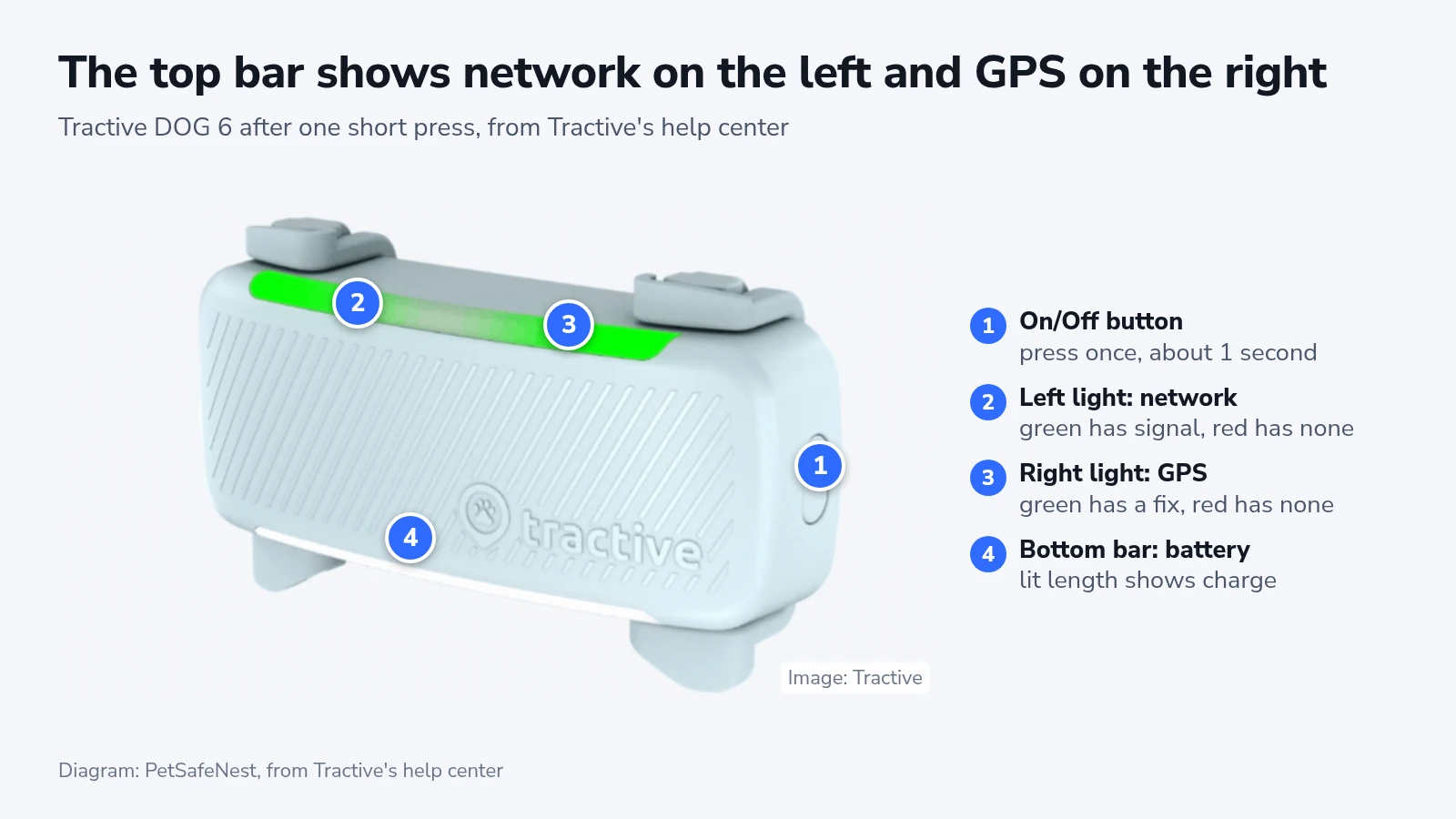
Green on both sides means the tracker has a cell signal and a GPS fix but isn’t in a Power Saving Zone. You can add up to five zones per tracker, such as a second home or an office. Don’t put two zones in the same place. Tractive says a tracker given both your home Wi-Fi and a Base Station may struggle to pick one network, and battery life can suffer.
Draw the Safe Zone past the yard
A Tractive circle fence can’t be smaller than 100 m (about 330 ft) across. That smallest circle covers nearly 2 acres, or about eight quarter-acre lots, and the rectangle’s minimum is bigger still. Around a house, use the custom shape. It has no minimum size, and the app warns you when a custom fence is too small for accurate alerts.
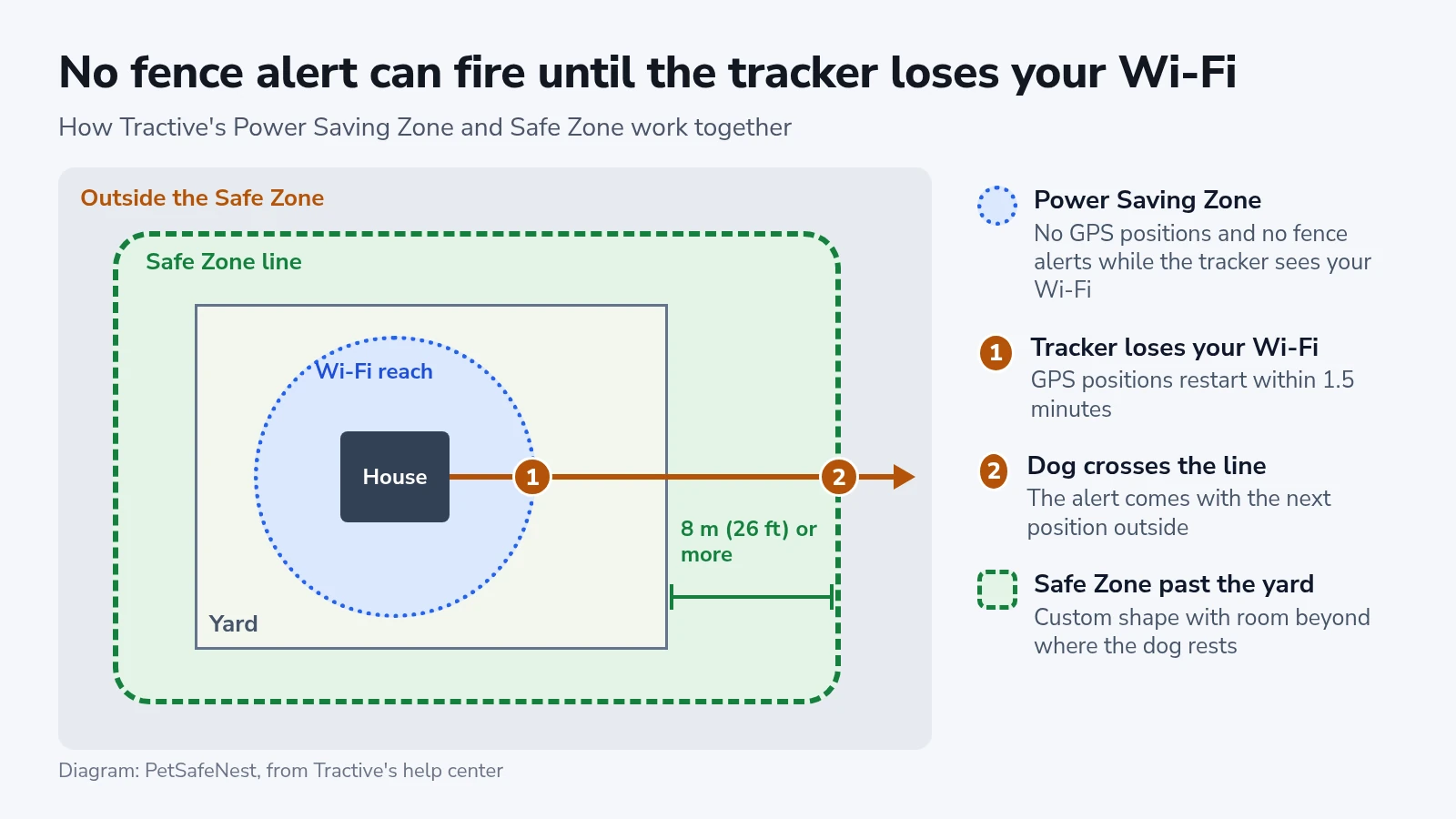
Leave room between the line and the places your dog rests. Tractive says its trackers are usually accurate to within 8 m (26 ft) outdoors in open spaces. GPS.gov, the U.S. government’s GPS site, lists buildings, trees and indoor use among the common causes of GPS error. That means a line drawn tight to the porch can be crossed by a stray position while the dog lies still.
- On the “Map” tab, tap “+” and choose “Add Virtual Fence”.
- Choose “Safe Zone”. Safe Zones show in green and No-Go Zones in red.
- Pick a type for the fence, such as “Home”.
- Choose the custom shape and drag its corners out past your yard. Keep the line at least 8 m beyond the spots where your dog naps or plays.
- If the app says the fence is too small, drag the corners farther out.
- Continue, give the fence a name, review the settings and tap “Create”.
A No-Go Zone over a busy road or a pond works the same way, and you get an alert when the dog enters it. Keep it from touching or overlapping the Safe Zone, because Tractive says overlapping fences make alerts less accurate. To pause a fence while you travel, go to “Profile” > “Safety & Location” > “Virtual Fences”, pick the fence, turn off the “Active” switch and tap “Save”.
Make sure the alert reaches a phone
The fence alert arrives as a push notification, and Tractive also shows it in the app and sends it by email. Phones can silence push notifications in several ways, so check each one before you need it.
- In the app, open “Account” > “Notifications” and look at which alerts are switched on. If the app has no permission to notify you, the “Account” tab shows a notice.
- Tap “Enable Notifications”. On an iPhone, tap “Open Settings”, then “Notifications”, and turn on “Allow Notifications”. On Android, tap “Allow”.
- On an iPhone, add the app to every Focus you use, Sleep included. Go to “Settings” > “Focus”, pick the Focus, then “Apps” > “Allow Notifications From” and add Tractive GPS.
- Check that a battery saver, Do Not Disturb or a cleaner app isn’t holding back the app’s notifications. On Android, battery optimization for the Tractive GPS app counts too, and its menu name differs by phone maker.
- On a Premium plan, invite the rest of the household with “Profile” > “Family Members” > “Send Invite”. Everyone with shared access gets the fence alerts.
How long an alert takes
Expect minutes. Tractive’s fence page says that in default mode the tracker checks the location about every two minutes, so an alert usually comes within a couple of minutes. Its tracking pages give anywhere from 2 to 60 minutes, depending on how active the pet is. One of them puts the average for a moving pet at about 10 minutes, which makes the couple of minutes a best case.
| Tracker state | How often it reports a position | Effect on a fence alert |
|---|---|---|
| Default tracking | Every 2 to 60 minutes, more often when the pet moves | A couple of minutes at best |
| Low Power Mode | Every 30 to 60 minutes | Tractive warns alerts can be delayed |
| Just left a Power Saving Zone | GPS restarts within 1.5 minutes | Adds up to 1.5 minutes |
| LIVE Tracking | Every 2 to 3 seconds | Nearly instant |
While the tracker can still see your Wi-Fi, it reports no positions and can’t send a fence alert. If your network reaches the sidewalk, past the Safe Zone line, the alert can only start where the Wi-Fi ends. The walk test at the end shows how that plays out at your house.
Turn Low Power Mode off if you count on fence alerts. Tap the tracker icon at the top right of the “Map” tab, then “Tracker Settings” > “Low Power Mode”. When it’s on, the battery icon on the map turns orange.
When an alert arrives, start LIVE Tracking from the “Map” screen. Positions then come every few seconds. LIVE switches itself off after 5 minutes without use, a limit you can change in the app. If the dog is out of sight and moving away, start your lost pet search at the same time. A tracker comes off with its collar, which is why the microchip registration should carry your current phone number too.
Models and plans that differ
Virtual Fences and Power Saving Zones work on every model named here, according to Tractive’s setup pages. The status light is the part that differs.
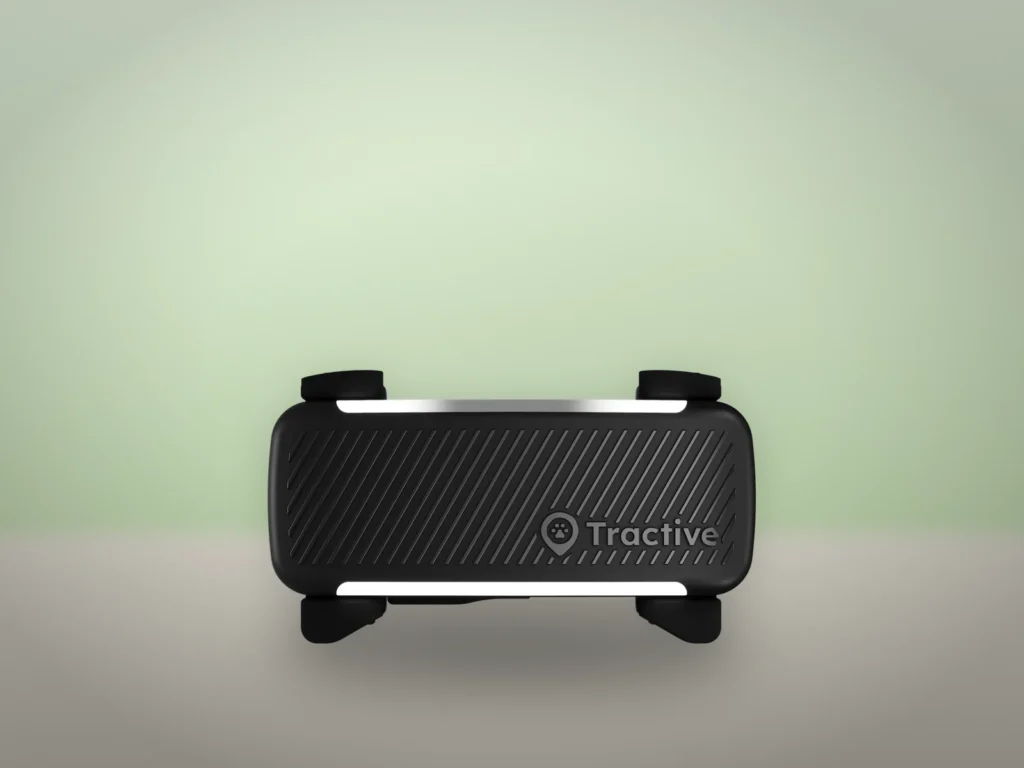
- DOG 6, DOG 6 XL and CAT 6 Mini have a two-part light on top. The left side shows the cell network, the right side shows GPS, and a bottom bar shows the battery.
- CAT Mini, DOG XL and DOG 4 have one light that blinks twice. The first blink is the cell network and the second is GPS.
- White on both, on any model, means the tracker is in a Power Saving Zone.
- Family Sharing needs a Premium plan. Tractive sells the Basic plan only in some countries.
On a cat’s map, the yellow Territory zone shows where the cat roamed over the past week. It isn’t a fence, so draw a Safe Zone for a cat the same way you would for a dog.
If it doesn’t work
Escape alerts at night, while the dog sleeps indoors, come from GPS errors that a working Wi-Fi zone would stop. Press the On/Off button. Anything other than white on both sides means the tracker isn’t in its zone. Tractive’s zones need a 2.4 GHz network that allows the older 802.11b standard, with a name that isn’t hidden. If your router uses one name for both bands, give that band a name of its own.
With a white light and false alerts still coming, make the fence bigger, check that no two fences overlap and don’t use LIVE Tracking indoors. Tractive also suggests turning on Bluetooth and Location Services on your phone. If the alerts keep coming, send Tractive support the exact times they arrived.
An “unstable connection” message while you set up the Wi-Fi zone means the tracker’s cell signal is weak. Press the On/Off button quickly ten times until the light blinks blue, wait a minute while it restarts, and try again near a window. You can also test with your phone’s hotspot as the network. If that works, your home router is the cause, and Tractive’s Base Station is the fallback it offers.
When no alert came after the dog left, check that the phone was online and that a Focus, Do Not Disturb or battery saver wasn’t silencing the app. A phone software update and a restart are the next steps. If nothing changes, run the walk test below, leave the tracker switched on, and send Tractive the time of your walk and the two colors the light showed.
A dog shown at the wrong address while it’s home means the Power Saving Zone pin is in the wrong place. Tap the tracker icon on the “Map” tab, open “Tracker Settings” > “Power Saving Zones”, move the pin onto your house and tap “Save”.
Walk it once before you rely on it
Tractive suggests a short walk with the tracker in your hand. It proves the alerts reach every phone that should get them.
- With the dog indoors, press the On/Off button and check that the light shows white on both sides.
- Take the tracker off the collar and carry it out of the house and across the yard.
- When a button press shows green on both sides, start LIVE Tracking in the app. It isn’t available inside a Power Saving Zone.
- Walk over the Safe Zone line and note the time.
- Wait for the alert on your phone and on the phones of everyone you shared the tracker with.
- Walk back inside the line. The app sends another alert when the tracker re-enters the zone.
To see the everyday delay, repeat the walk another day with LIVE Tracking off. Walk it again after you replace your router, rename your Wi-Fi or move house, because the zone only works with the network you picked when you set it up.